


Most home office advice falls into one of two traps. Either it tells you to spend thousands on a Herman Miller chair and a standing desk the size of a runway, or it gives you a vague list of “essentials” that somehow never includes anything you can actually find and buy the same week. Neither is useful when you’re trying to turn a spare bedroom corner into a place where real work gets done.
This guide is different. It’s built around one principle: you need reliable gear, you need to be able to get it quickly, and you need someone local to call when something breaks. That last part is the one most online shopping guides skip entirely, and it matters more than you’d expect.
Start with the laptop – and get that decision right
The laptop is your anchor. Everything else – the monitor, the keyboard, the webcam – exists to extend and improve what the laptop already does. So you want to get this choice right before you start spending on accessories.
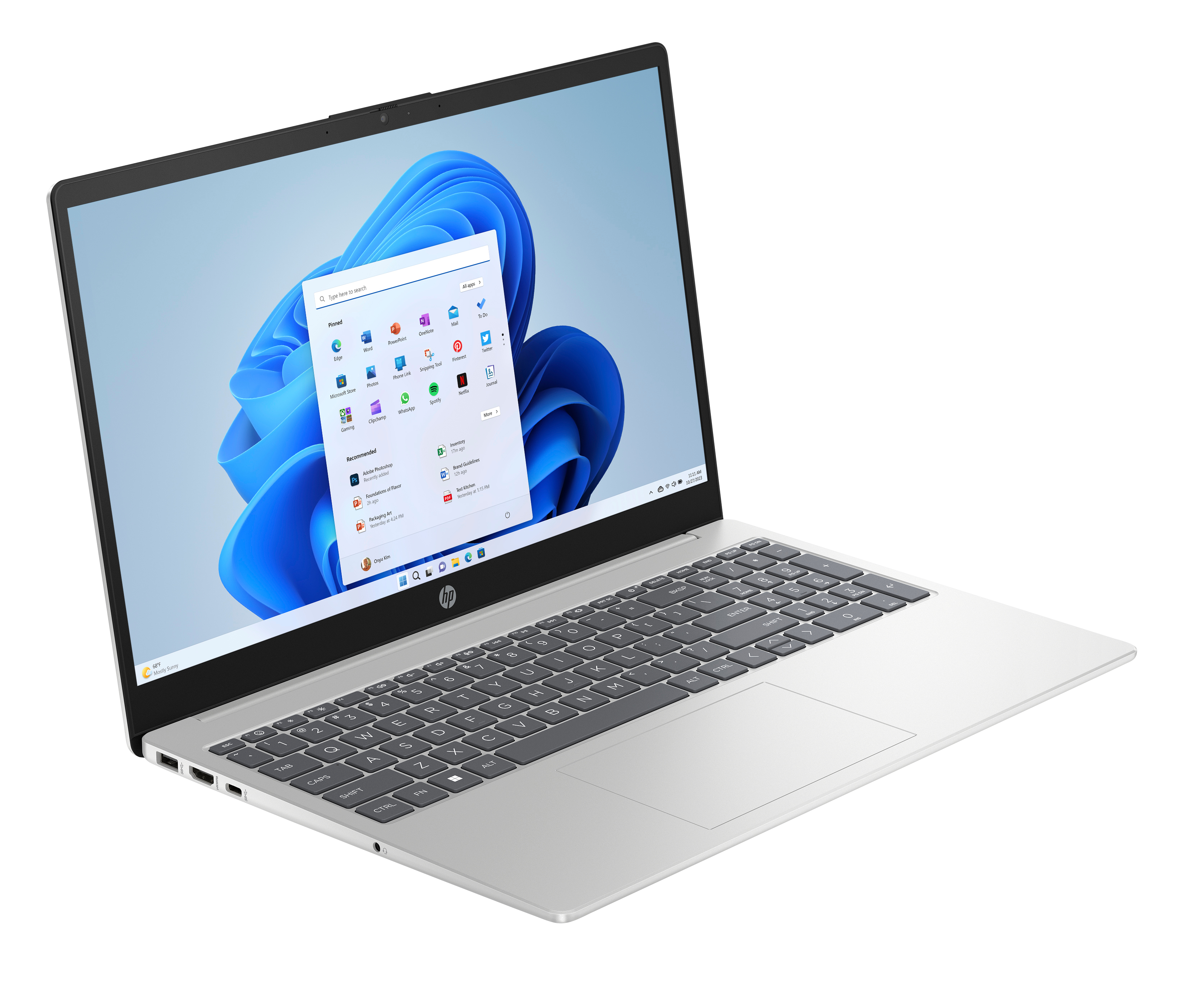
For most hybrid workers, the practical sweet spot sits somewhere between “light enough to carry to a coworking space on Tuesday” and “powerful enough to run three browser tabs, a video call, and a spreadsheet without throttling.” A 15-inch screen with a Full HD display covers both. You’re not editing 4K video. You’re doing actual work.
Windows 11 laptops in this category – think HP 15 or equivalent – have matured considerably. The battery life is genuinely usable for a full workday. The keyboards are better than they were three years ago. And the displays are bright enough that you don’t immediately want to plug in an external monitor just to see your spreadsheet. That said – and we’ll come back to this – a second screen still changes everything once you try it.
One thing to factor in when you’re choosing: where are you buying it, and who fixes it if something goes wrong? Ordering from a faceless warehouse might shave a few euros off the sticker price. But when the hinge starts wobbling six months in, or the charging port acts up during a client call, you’ll be shipping it off to a returns center and waiting three weeks. That’s not a theoretical risk. It happens constantly.
The monitor question – do you really need one?
Short answer: yes. Longer answer: probably sooner than you think.
The productivity case for a second screen has been made a thousand times, so we’ll skip the obvious and get to the practical. If you’re working from home even two or three days a week, the economics are clear. A 24-inch Full HD display – decent IPS panel, nothing exotic – costs roughly the same as two café working sessions with your laptop. It will outlast two laptops. The return on that purchase shows up in your day-to-day focus almost immediately.
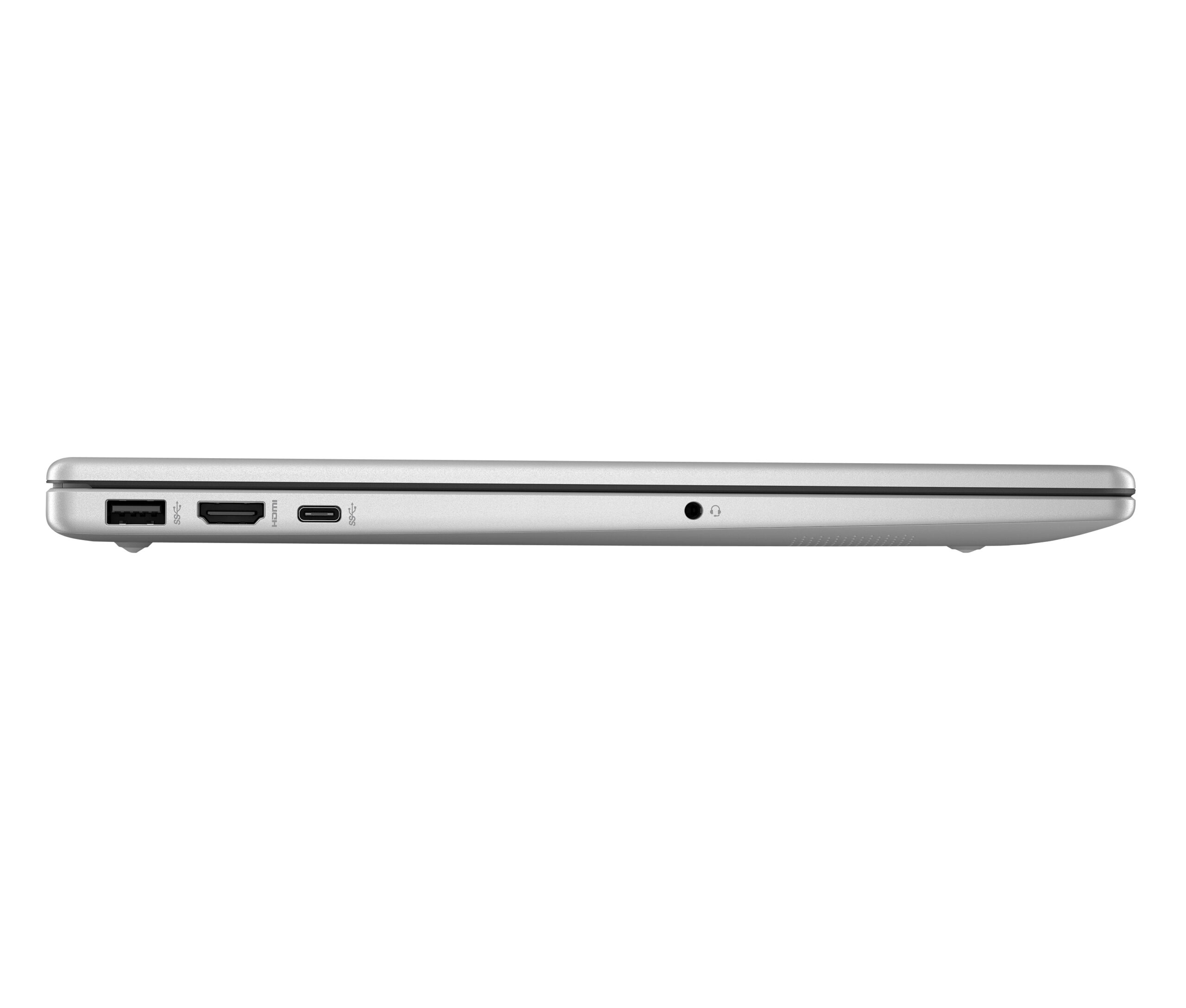
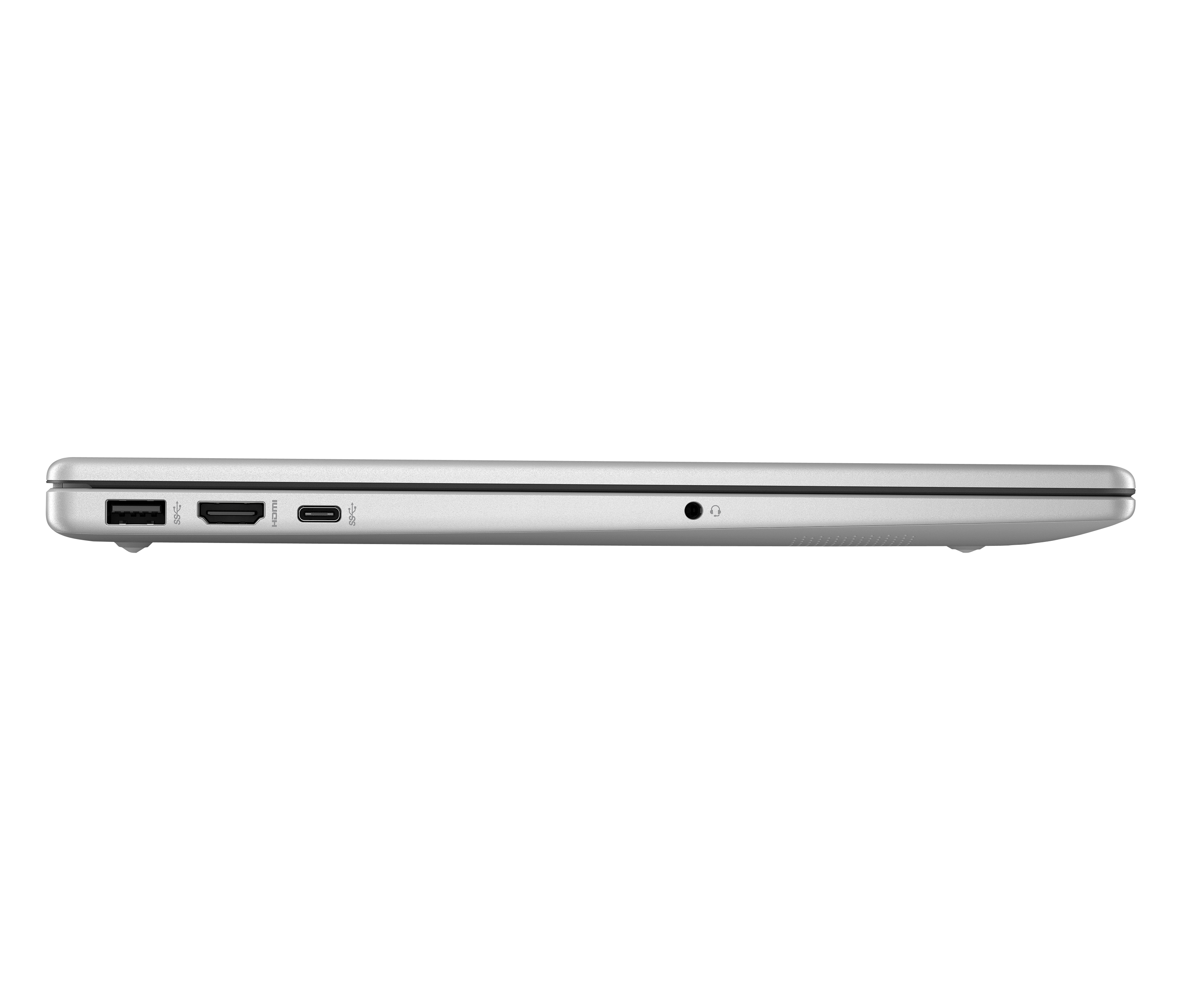
The key question isn’t whether to buy a monitor. It’s whether your setup can support one without creating cable chaos. A laptop with a USB-C port that handles video output, or an HDMI port you can plug directly into the display – that’s what you’re looking for. Most modern mid-range laptops handle this fine. But it’s worth checking before you buy either device.
Peripherals: the part everyone underestimates
Here’s something counterintuitive. The accessories you add to a decent laptop – keyboard, mouse, webcam, USB hub – often have more impact on your daily comfort than upgrading to a more powerful machine would. Your back knows when your screen is too low. Your wrists know when you’ve been typing on a cramped keyboard for six hours. These aren’t luxury complaints.
A wireless keyboard and mouse let you set the monitor at eye level and keep your wrists neutral. That combination reduces fatigue significantly over the course of a work week. A basic 1080p webcam makes video calls feel less like communicating through a foggy porthole. A USB hub means you’re not constantly swapping the one port you need. None of these items are expensive. Together, they shift the feel of working from home from “makeshift” to “this actually works.”
The repair question nobody talks about until they need it
Let’s be honest about something most home office guides skip. Laptops break. Tablets get cracked screens. Charging cables fray. And when they do, the experience of getting them fixed varies enormously depending on where you bought the device.
This is where buying locally – from a retailer with actual physical stores and in-house technical service – stops being a soft preference and starts being a real advantage. If your laptop goes down before a deadline and the repair center is a 15-minute drive away rather than a week-long mail-in process, that is a meaningful difference. For HP devices specifically, access to an authorized service center means the repair is done to manufacturer standards, not by whoever the cheapest online reseller could find.
We’d be overstating things if we said this consideration should outweigh price entirely. It probably shouldn’t. But it deserves more weight than most people give it when they’re clicking “add to cart” at midnight on a discount aggregator site.
Building the setup in stages – the practical approach
Nobody needs to do this all at once. The people who try to buy a complete setup in one go often overspend on things they don’t need and underspend on things that would actually make a difference.
A more useful approach looks like this. Start with the laptop – get a solid machine that covers your actual use case. Use it for a couple of weeks in default configuration, working at the kitchen table or wherever you normally set up. Pay attention to what frustrates you. Is it the screen size? The keyboard? The inability to have two documents open side by side? That frustration tells you exactly what to buy next.
The second purchase is almost always the monitor. The third is usually a keyboard-and-mouse combo. The fourth might be a webcam or a better headset for calls. After that, you’re into marginal gains – a monitor arm, a decent lamp for video calls, a Bluetooth speaker if you work better with background sound.
The best home office setup is the one you’ll actually use every day – not the one that looks best in a tech review.
The honest verdict – and the one flaw worth naming
The proximity model – buying locally, picking up in-store, getting repairs done nearby – works extremely well for most people setting up or upgrading a home office. Digital browsing with local access genuinely solves a problem pure e-commerce doesn’t. And for HP users in Spain, having an authorized service center at the same retailer where you bought the device is a real advantage.
The one honest limitation is geographic. If you’re in a smaller town or rural area without a nearby store, the in-person advantages narrow considerably. You’re essentially using a well-stocked online retailer with good shipping – still useful, and free shipping to the Iberian Peninsula and Balearic Islands covers a lot of ground – but the full proximity advantage is an urban and suburban story for now.
That aside, the core advice holds. Start with a reliable laptop that matches your actual workload. Add a monitor earlier than you think you need one. Layer in peripherals based on what frustrates you, not what a spec sheet says you should want. Buy from somewhere that can fix your gear when it breaks – not just sell it to you. Your home office will thank you for it.
